Pointing a Domain at Your Server’s IP
This guide shows how to make a domain name (like example.com) take visitors
to your own server, and explains what is happening behind the scenes.
Note
Throughout this page example.com stands for your domain and
203.0.113.10 stands for your server’s public IP address. Replace both
with your real values.
How It Works
Computers find each other with IP addresses (numbers like 203.0.113.10).
People prefer names (like example.com). The Domain Name System (DNS)
is the “phone book” that turns a name into a number.
When someone types your domain into a browser:
The browser asks DNS, “What is the IP address for example.com?”
DNS answers, “203.0.113.10.”
The browser connects directly to that IP and asks for the page.
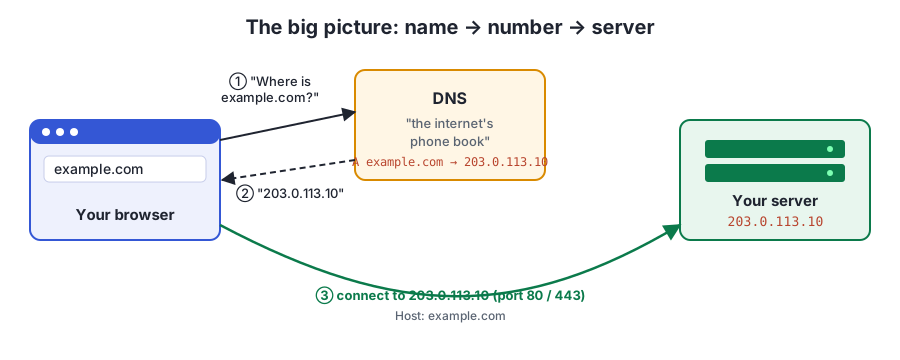
The browser only uses DNS to look up the number. After that it talks straight to your server.
Your job is to put a record in DNS that says “example.com lives at 203.0.113.10.” That record is called an A record.
Where the lookup actually goes
No single computer knows every domain. A DNS lookup walks down a chain, starting with the most general servers and ending with the one that holds your records:
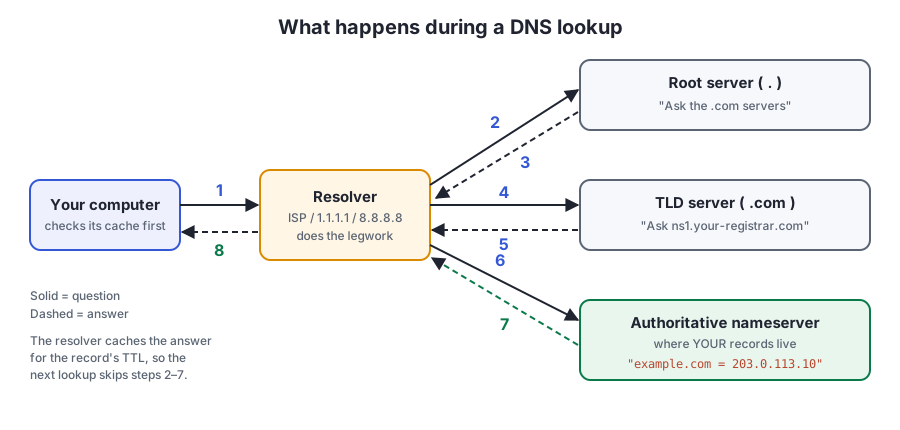
A full DNS lookup. The resolver does all of the asking for you.
Resolver – run by your ISP, or a public one like
1.1.1.1(Cloudflare) or8.8.8.8(Google). It does the lookups for you and caches the results.Root servers – know where each top-level domain (
.com,.org,.net…) is handled.TLD servers – know which nameservers are in charge of each domain.
Authoritative nameserver – holds the actual records for your domain. This is usually your registrar (Namecheap, GoDaddy, Porkbun, Cloudflare, etc.). This is the place you will edit.
Answers are cached for the record’s TTL (Time To Live, in seconds). That is why a change can take minutes or hours to show up everywhere – people still have the old answer saved until their TTL runs out. This delay is often called DNS propagation.
Common record types
Type |
Example |
What it does |
|---|---|---|
A |
|
Points a name at an IPv4 address. This is the one you need. |
AAAA |
|
Same as A, but for an IPv6 address. Only add it if your server has one. |
CNAME |
|
Makes one name an alias for another name (not an IP). |
NS |
|
Says which nameservers are in charge of the domain. Usually leave alone. |
MX |
|
Where email for the domain is delivered. Not needed for a website. |
Before You Start
You need:
A domain you own, bought from a registrar.
A server with a public IP address (a VPS from DigitalOcean, Linode, AWS, etc., or a home server with port forwarding).
A login to the registrar’s website and SSH access to the server.
Step 1: Find Your Server’s Public IP
On the server, run:
curl -4 ifconfig.me
The number it prints is your public IPv4 address. You can also find it in your hosting provider’s dashboard.
Warning
Do not use an address that starts with 192.168., 10., or
172.16.-172.31.. Those are private addresses that only work inside
your own network. Running ip addr on a home server will usually show one
of these – the public IP is the one curl ifconfig.me shows.
Step 2: Open Your Domain’s DNS Settings
Log in to the registrar where you bought the domain.
Find your domain in the list and open a page named something like DNS, Manage DNS, DNS Records, or Advanced DNS.
Delete any “parked” or “forwarding” records the registrar added for you that point
@orwwwsomewhere else.
Tip
If the DNS page says your domain uses custom nameservers (for example Cloudflare’s), then the records must be edited there, not at the registrar. Records only count on whichever service the NS records point to.
Step 3: Add the A Records
Add two A records – one for the bare domain and one for www:
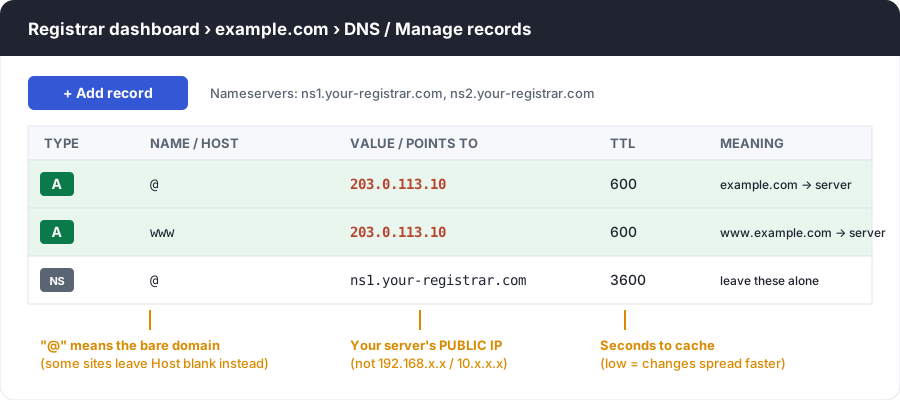
What the records look like in a typical registrar’s DNS panel.
Type |
Host / Name |
Value / Points to |
TTL |
|---|---|---|---|
A |
|
|
600 (or “Automatic”) |
A |
|
|
600 (or “Automatic”) |
@means “the domain itself” (example.com). Some registrars want the host left blank instead.Instead of a second A record, you can make
wwwa CNAME pointing atexample.com. Either way works; the A record is simplest.Use a subdomain like
docsas the host if you wantdocs.example.cominstead.
Save the changes.
Step 4: Check That DNS Is Working
Wait a few minutes, then check from your own computer:
# Linux / macOS / WSL
dig +short example.com
dig +short www.example.com

# Windows (or anywhere)
nslookup example.com
Both should print 203.0.113.10. If you see a different address or nothing
at all, wait a bit longer – new records are usually visible within
5-30 minutes, but old cached answers can take up to the old TTL (sometimes
24-48 hours) to expire.
You can ask a specific public resolver directly to skip your own cache:
dig +short example.com @1.1.1.1
dig +short example.com @8.8.8.8
Sites like https://dnschecker.org show what resolvers around the world see.
Step 5: Make the Server Answer
DNS only gets visitors to the right machine. The server still has to let them in and know which site to show.
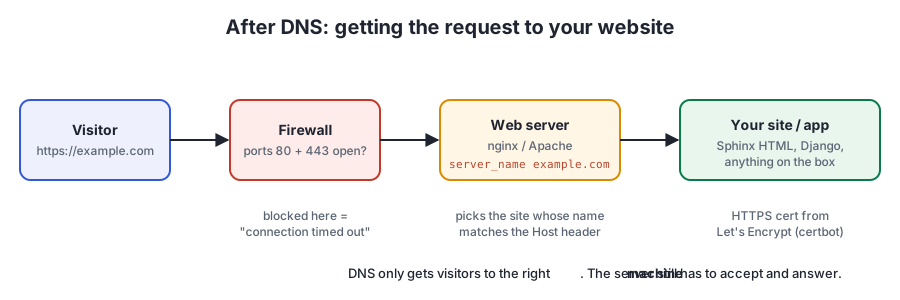
Once DNS has done its job, the request still passes through the firewall and the web server.
Open the firewall
Websites use port 80 (HTTP) and 443 (HTTPS). On Ubuntu with ufw:
sudo ufw allow 80/tcp
sudo ufw allow 443/tcp
sudo ufw status
If your host has a cloud firewall (AWS security groups, DigitalOcean firewall, etc.), open the same ports there too. On a home server, forward ports 80 and 443 on your router to the server.
Tell the web server about the domain
One server can host many sites, so the web server looks at the name the
visitor asked for (the Host header) to choose which one to show. For
nginx, create /etc/nginx/sites-available/example.com:
server {
    listen 80;
    server_name example.com www.example.com;

    root /var/www/html/example;
    index index.html;
}
Enable it and reload:
sudo ln -s /etc/nginx/sites-available/example.com /etc/nginx/sites-enabled/
sudo nginx -t
sudo systemctl reload nginx
Visit http://example.com – you should see your site.
Add HTTPS (free)
Let’s Encrypt gives free certificates. It checks that the domain really points to your server, so only do this after Step 4 works:
sudo apt install certbot python3-certbot-nginx
sudo certbot --nginx -d example.com -d www.example.com
Certbot edits the nginx config for you and renews the certificate automatically.
Troubleshooting
Symptom |
Likely cause |
|---|---|
|
Record not saved, wrong host field, or the domain uses different nameservers than the ones you edited. |
|
Cached answer. Wait for the TTL, or check with |
|
Firewall or router is blocking ports 80/443, or the web server is not
running ( |
Browser shows the nginx “Welcome” page |
|
|
Missing one of the two A records. |
Certbot fails with a “challenge” error |
DNS isn’t pointing at this server yet, or port 80 is blocked. |
Summary
Get your server’s public IP.
In your domain’s DNS, add A records for
@andwwwpointing to it.Wait, then confirm with
digornslookup.Open ports 80/443, set
server_namein the web server, and add HTTPS with certbot.